 Trade Buddy
How to Use Trade Buddy: A Step-by-Step Walkthrough (With Screenshots)
How to use Trade Buddy on iPhone: explore the demo, build your PnL calendar, log trades in seconds, read your analytics and let the AI coach find your leaks.
Most trading-journal guides tell you why journaling matters and then leave you staring at an empty app. This one does the opposite. It’s a screen-by-screen walkthrough of how to use Trade Buddy on iPhone: exactly what you’ll see, in the order you’ll see it, from the first launch to the analytics that tell you where your money actually goes. Every screenshot below is the real app, so by the end you’ll know your way around the whole thing.
If you’re still deciding whether an iPhone journal is worth it at all, start with the buyer’s checklist and come back. If you’ve already downloaded it, follow along.
Step 1: Explore the demo before you commit anything
Open the app for the first time and there’s no login wall. You land inside a fully populated demo account with real-looking trades and a working calendar. You can tap around the entire app before deciding to set up your own portfolio.
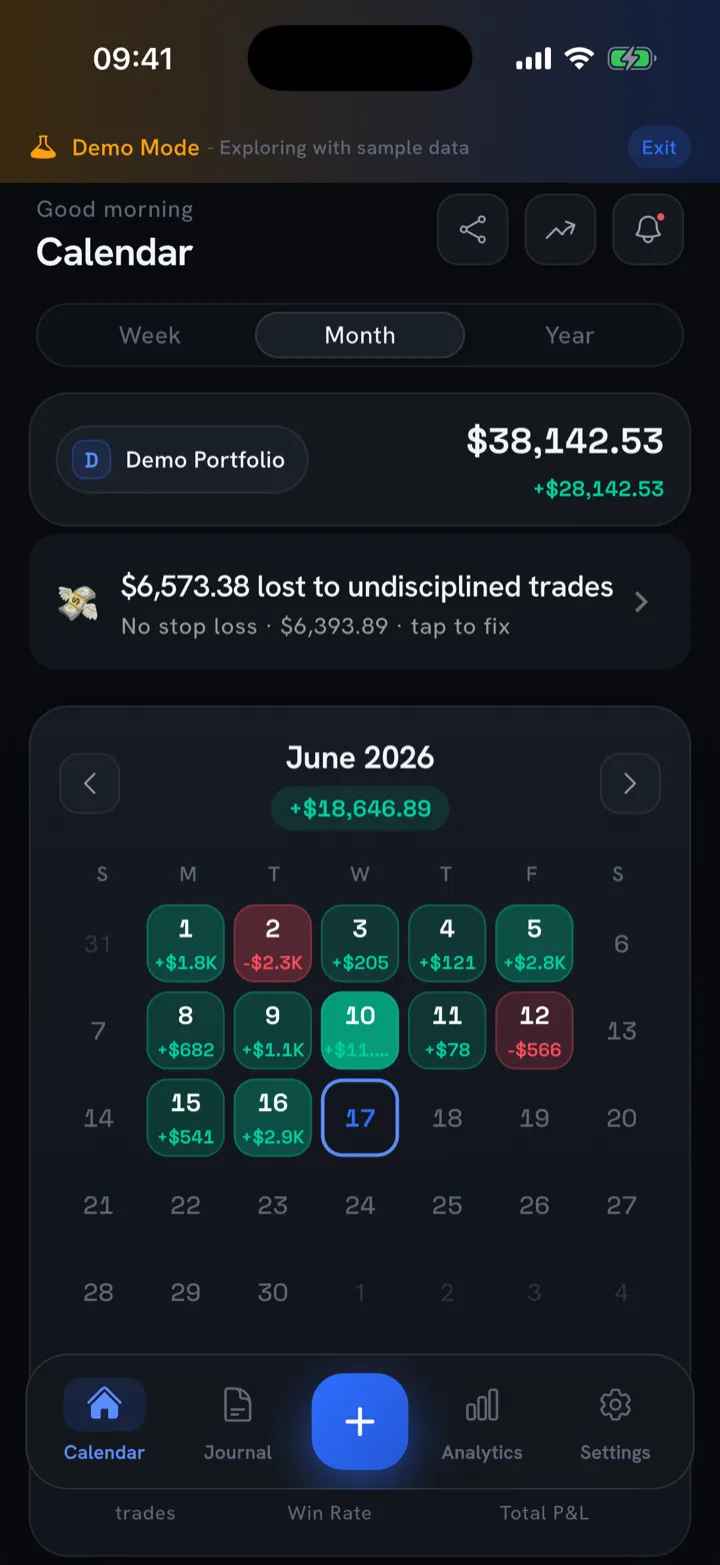
That’s the home screen: a monthly PnL calendar. Each day is colored by result, green for a profit day and red for a loss day, with the day’s P&L printed right on the tile. The header sums the month (here, +$18,646.89), and the banner up top flags how much was lost to undisciplined trades. The “Demo Mode” strip means none of this is your data yet; it’s a sandbox for learning the layout.
When you’re ready to track real trades, the app swaps the demo for your own account in one short screen.
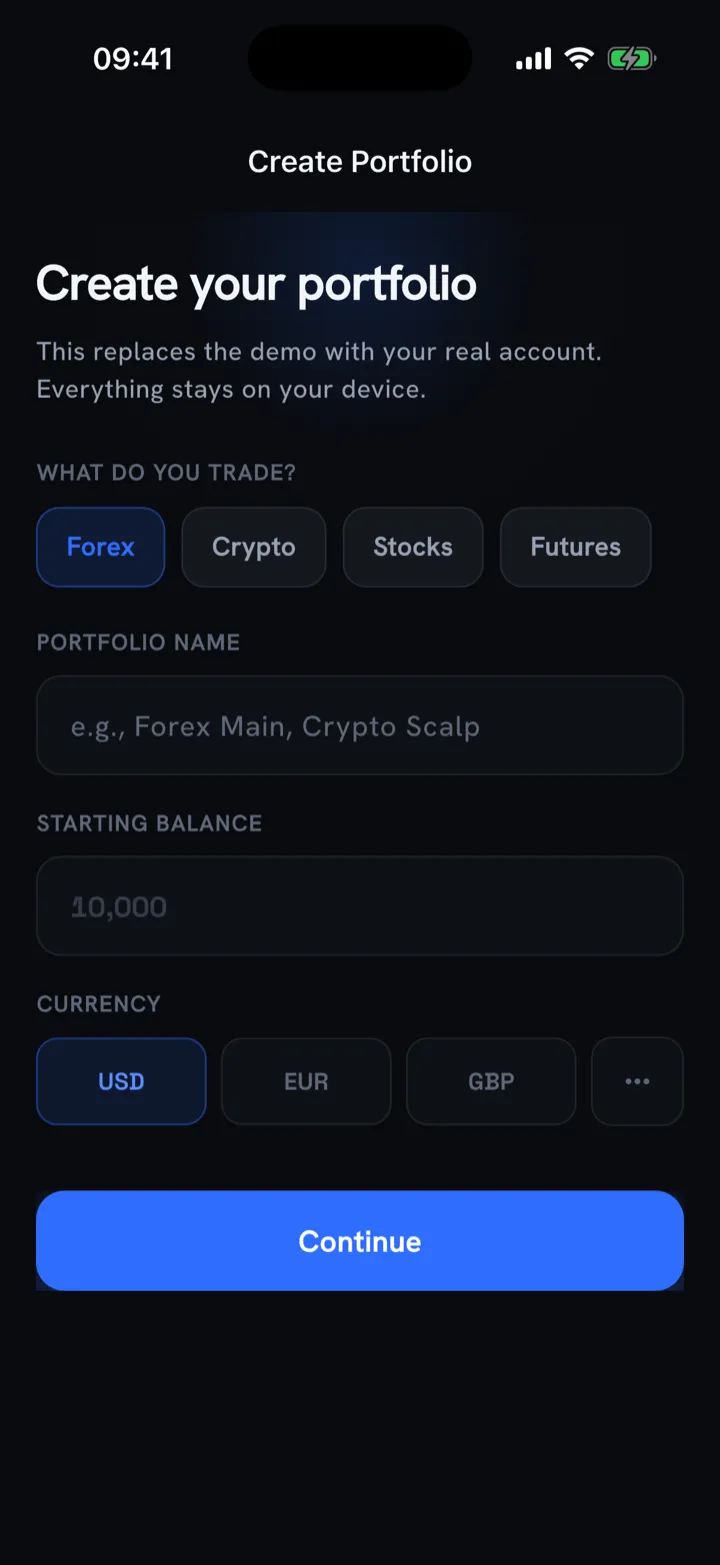
Pick what you trade (Forex, crypto, stocks, futures and more), name the portfolio, set a starting balance and currency, and tap Continue. You won’t enter an email or a password, and your data stays on the device. That privacy-first, on-device default is one of the criteria we weight heavily in the buyer’s guide.
Step 2: Log a trade in seconds
The blue + button in the center of the tab bar is how you add a trade from anywhere in the app. Tap it and you get the Log Trade sheet.
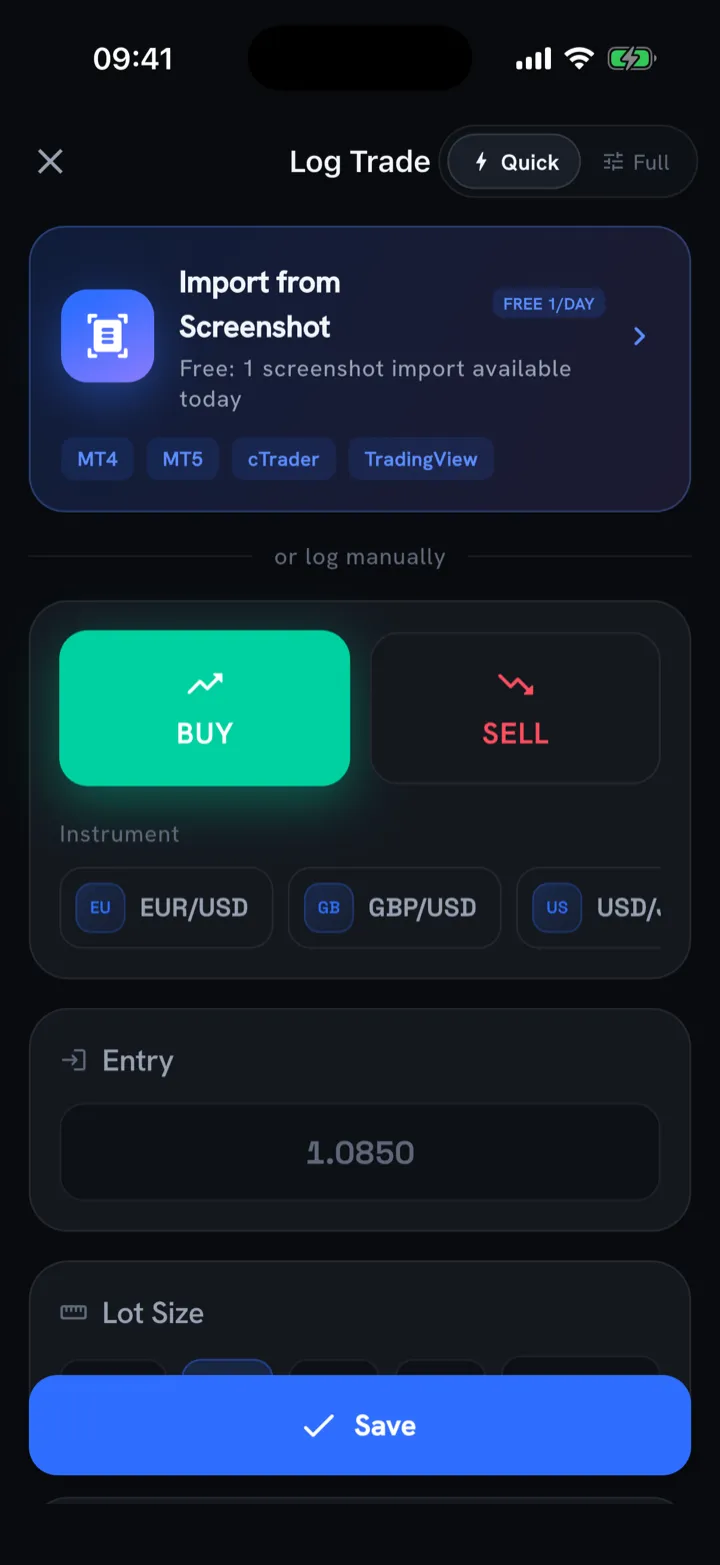
There are two ways in. Quick mode (shown above) captures the essentials (direction, instrument, entry, lot size) in a handful of taps, which is what you want when you’re logging on the move. Or skip typing entirely with Import from Screenshot: snap your broker’s trade-history screen from MT4, MT5, cTrader or TradingView and let the app read the fills.
Switch to Full mode when you want the complete record.
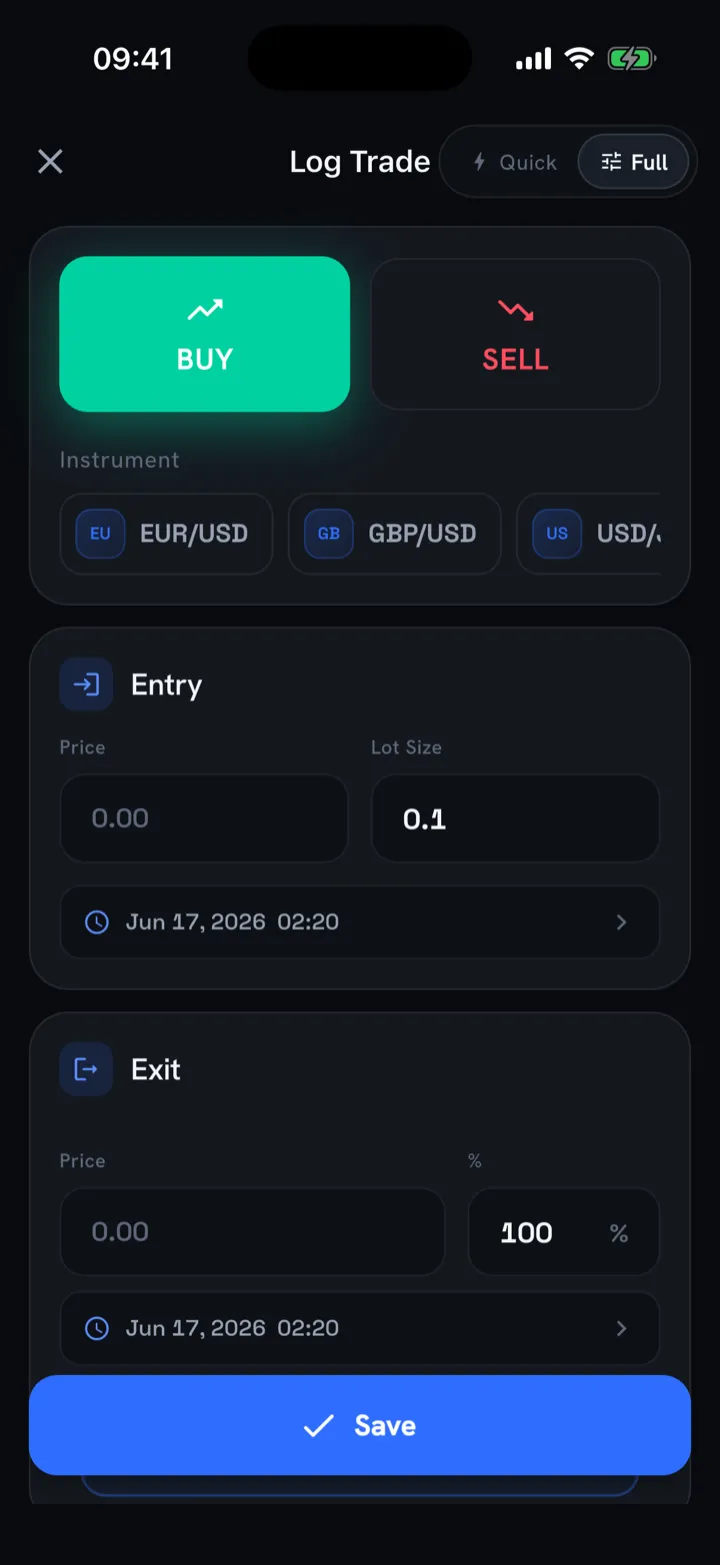
Full mode adds exit price, partial-close percentage, precise timestamps and room for the context that makes a journal useful later: notes, tags, a strategy and how you felt taking the trade. One rule keeps it sustainable: if logging takes longer than the trade felt, you’ll stop doing it. Use Quick on busy days and Full when you’re reviewing.
Already have months of history on MetaTrader? Don’t type it by hand. See how to import MT4 and MT5 trades.
Step 3: Review a day, then a single trade
Back on the calendar, tap any colored day to expand the trades behind that number.
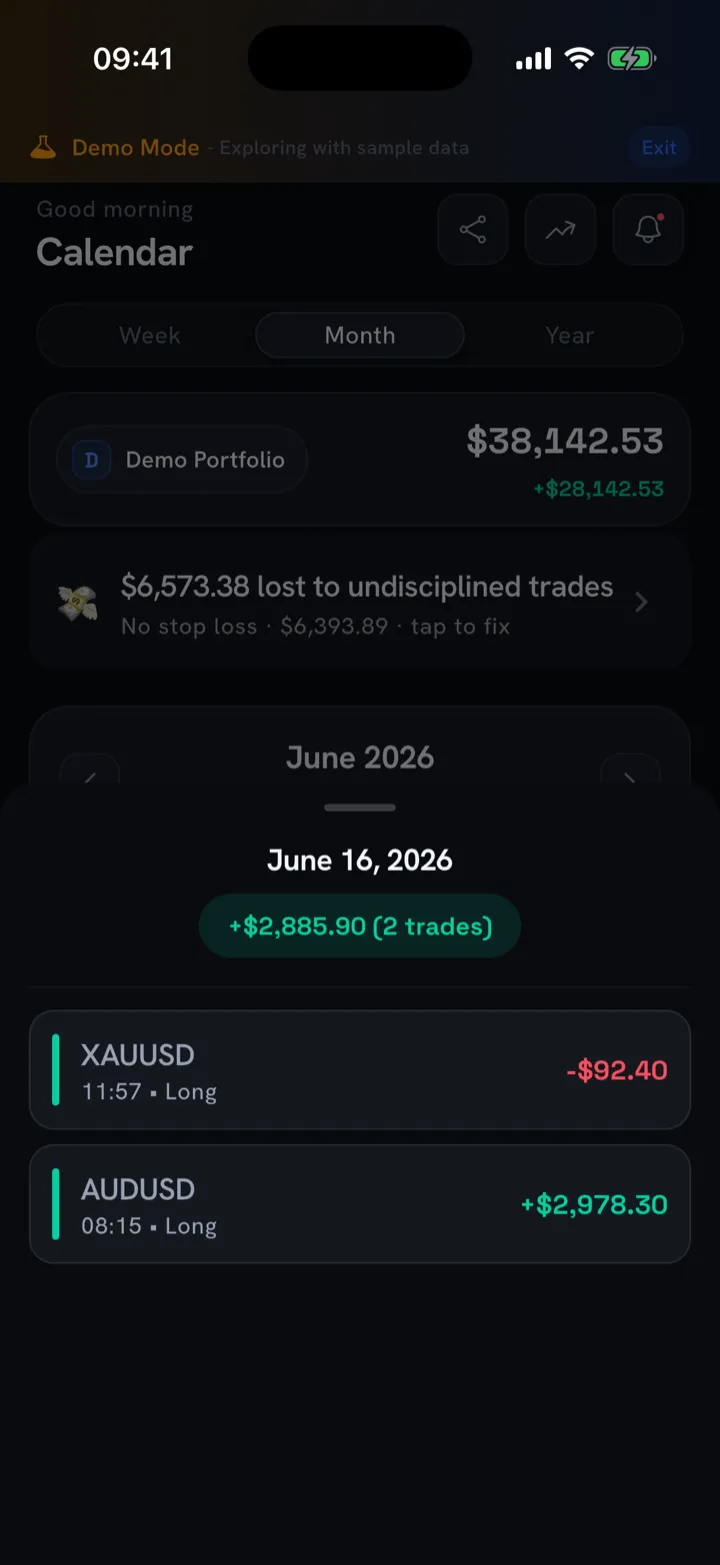
The day sheet shows each trade’s instrument, time, direction and result, so a green day that was secretly one big winner covering three losers stops hiding from you. Tap a trade to open its full detail.
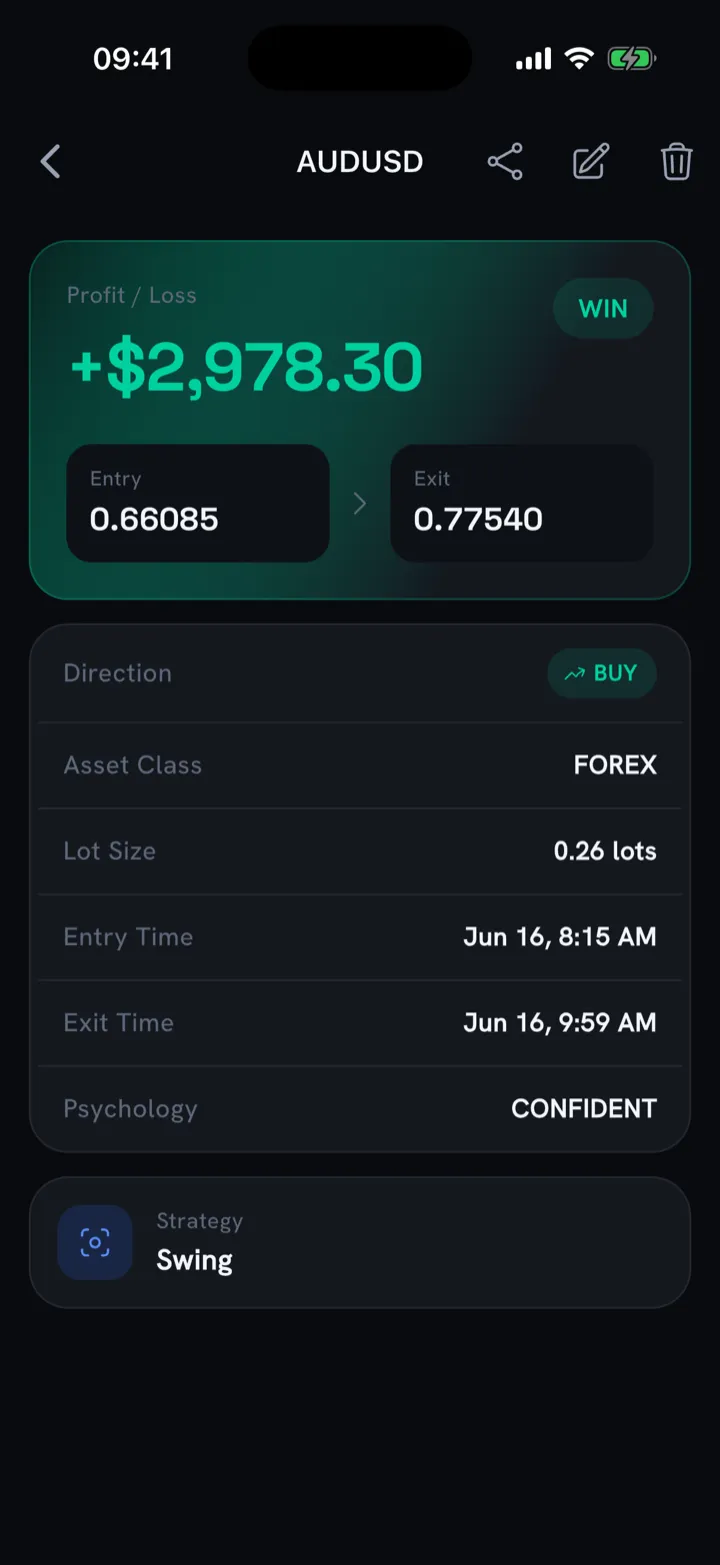
This is where journaling earns its keep. The trade card carries the entry and exit, direction, asset class, lot size and exact times, plus the two fields most apps skip: the psychology you logged (“Confident”) and the strategy you ran (“Swing”). Over a few weeks those tags let you ask the useful questions: do my “confident” trades actually win more than my “revenge” ones? For the why behind reviewing your own decisions, see the journaling guide.
Step 4: Read the analytics that matter
Tap the Analytics tab. The top of the screen is a single trading-health score out of 100, broken into discipline, risk and consistency.
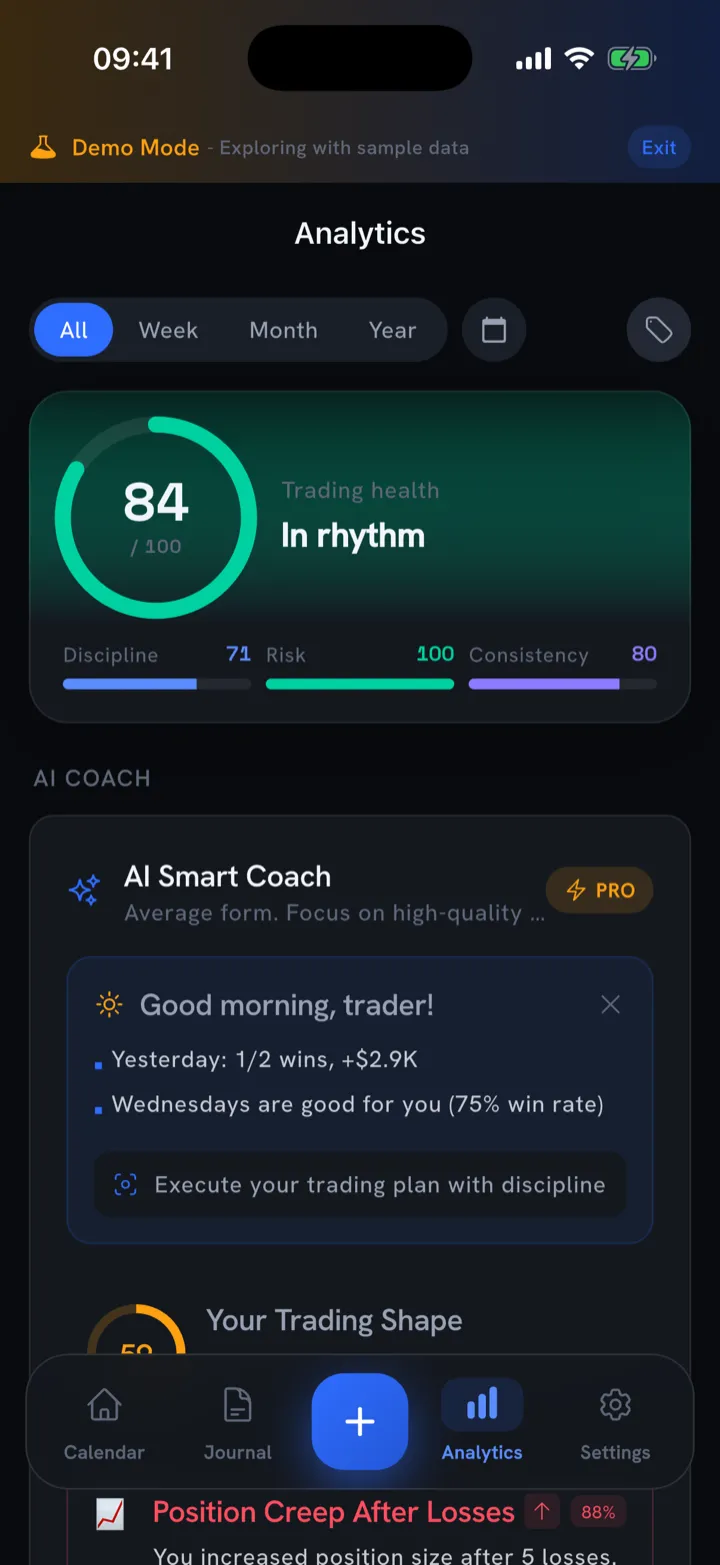
One number to glance at, with three sub-scores to explain it. Below the gauge is the AI coach, which reads your logged trades and writes a plain-English briefing: recent results, the days that work for you and a nudge to follow your plan. The briefing changes as you log more, so it reflects how you trade now instead of a generic template.
Scroll down for the Performance Overview: win rate, average risk-reward, total trades and your current streak, with deeper risk-adjusted metrics a tap away.
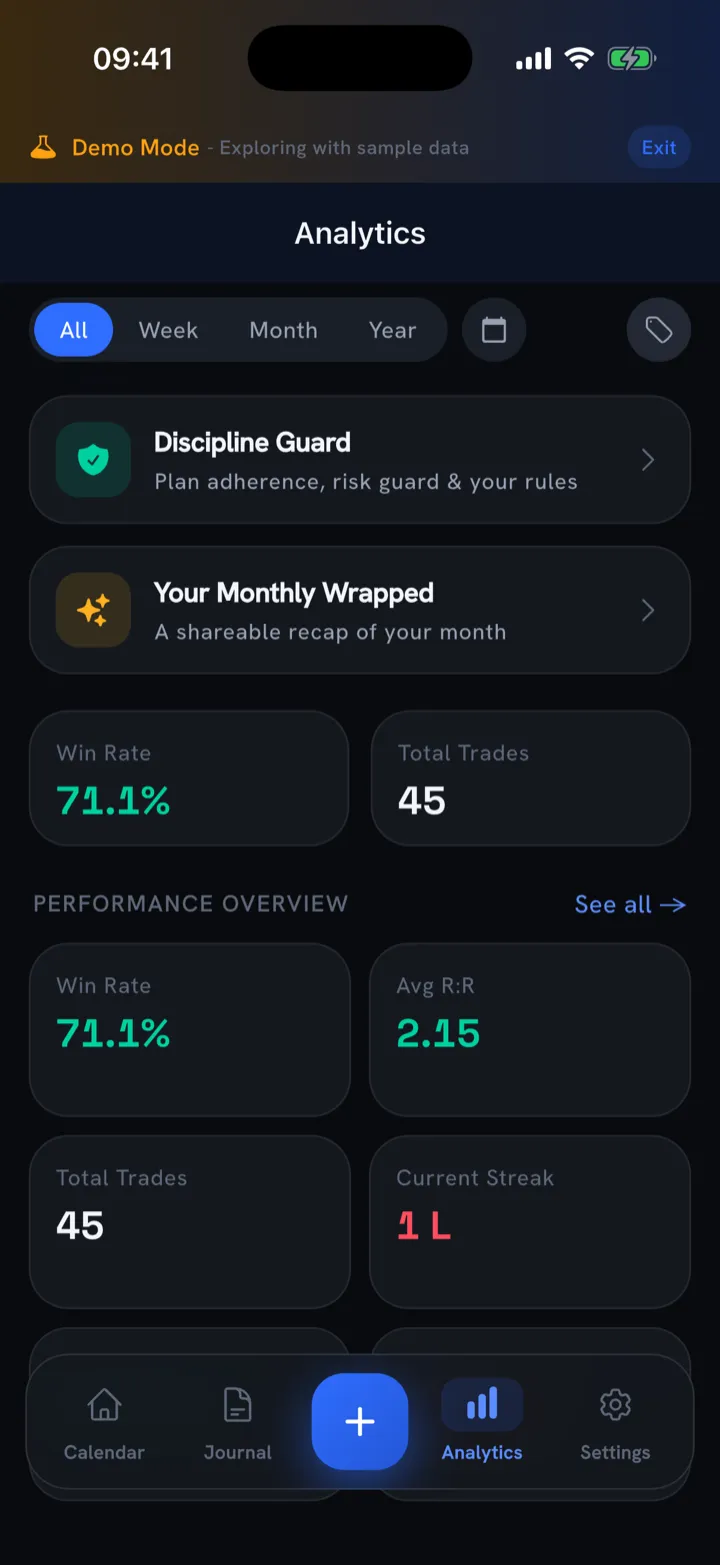
Win rate alone can mislead you: a 90% win rate can still lose money if the 10% are huge. That’s why the average R:R sits right next to it. We rank the metrics worth your attention, and the ones to ignore, in the trading metrics that matter.
Step 5: Let the AI coach find your leaks
Keep scrolling in Analytics and the coach moves from summary to specifics: pattern detection across your own history.
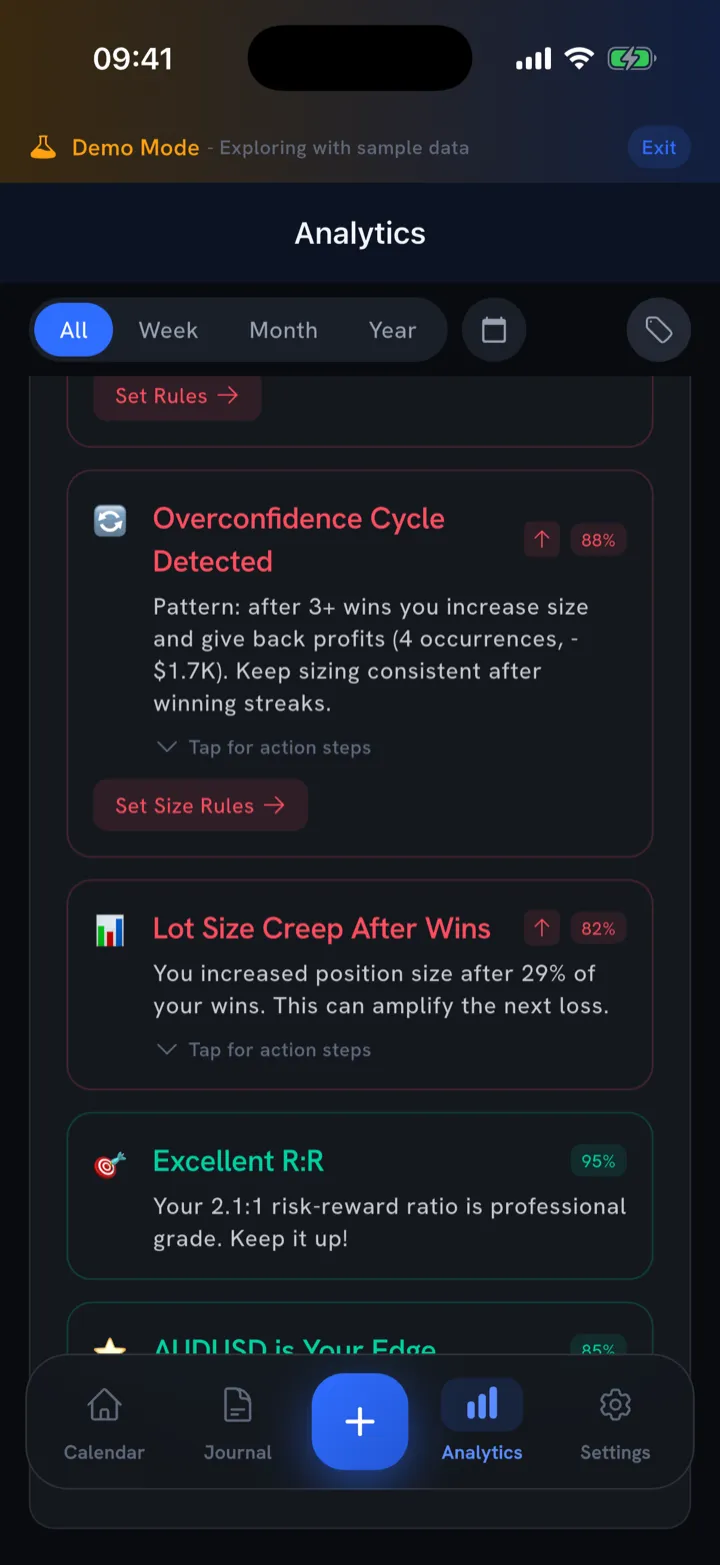
Each card is a pattern with a confidence score. Some are leaks: “Overconfidence Cycle Detected: after 3+ wins you increase size and give back profits.” Each one comes with action steps and a button to turn it into a hard rule. The coach also surfaces your edges, like “Excellent R:R, your 2.1:1 ratio is professional grade” and “AUDUSD is your edge.” You see both the leaks to fix and the edges to lean into.
The most common leak it catches is sizing up after a loss to “win it back.” If that’s your pattern, pair these alerts with the system in how to stop revenge trading.
Step 6: Set rules that protect the account
Spotting your patterns helps, but you still need a way to stop yourself acting on a bad moment. Open Settings → Trading rules to reach the Discipline guard.
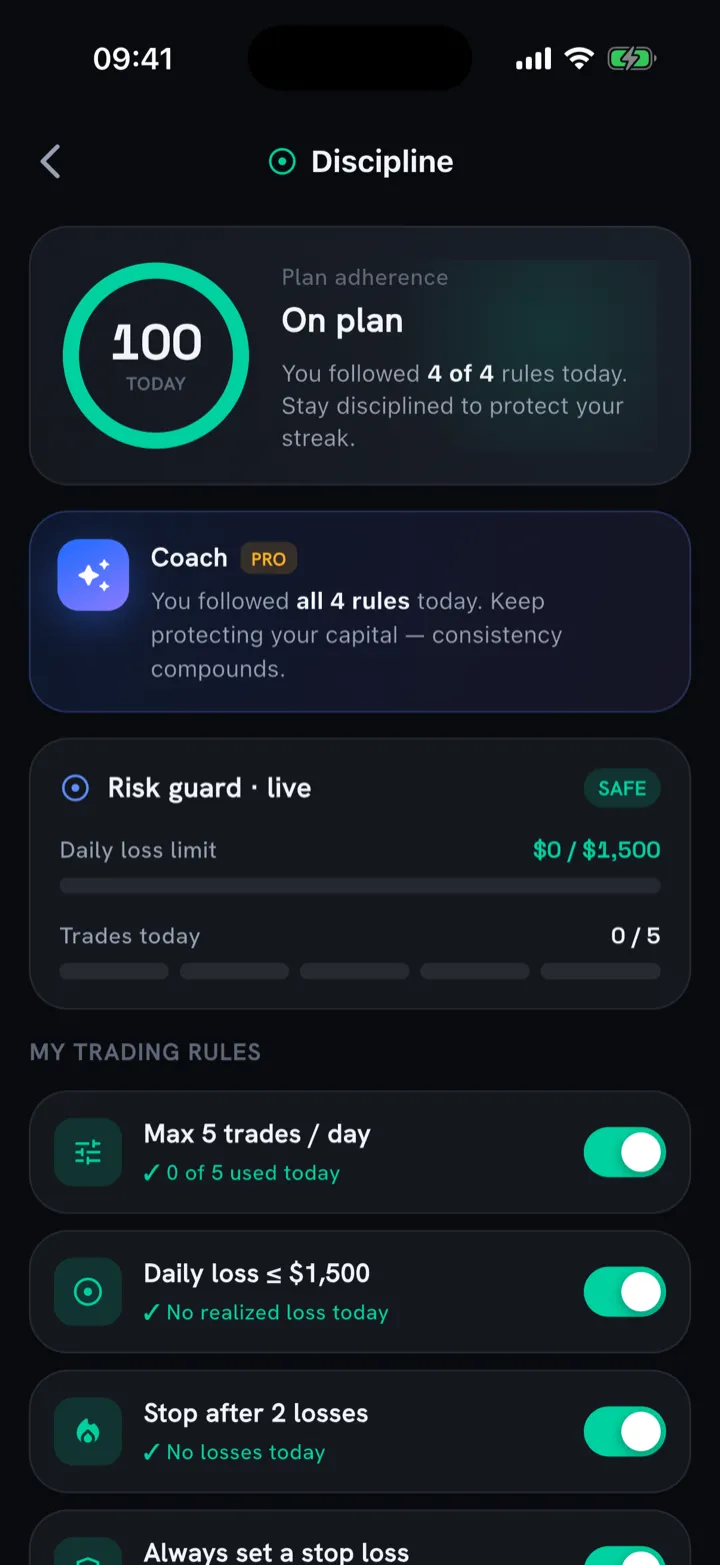
Here you set your own guardrails: a max number of trades per day, a daily loss limit, “stop after two losses,” “always set a stop loss.” The app tracks them live. The risk guard counts your trades and realized loss against your limits in real time, and a plan-adherence score turns following your process into its own scoreboard. Hit 100 today and you protected the streak, win or lose.
Step 7: Import history and keep everything in sync
Last, the housekeeping that keeps the journal honest. Settings → Import Trades is your bulk on-ramp.
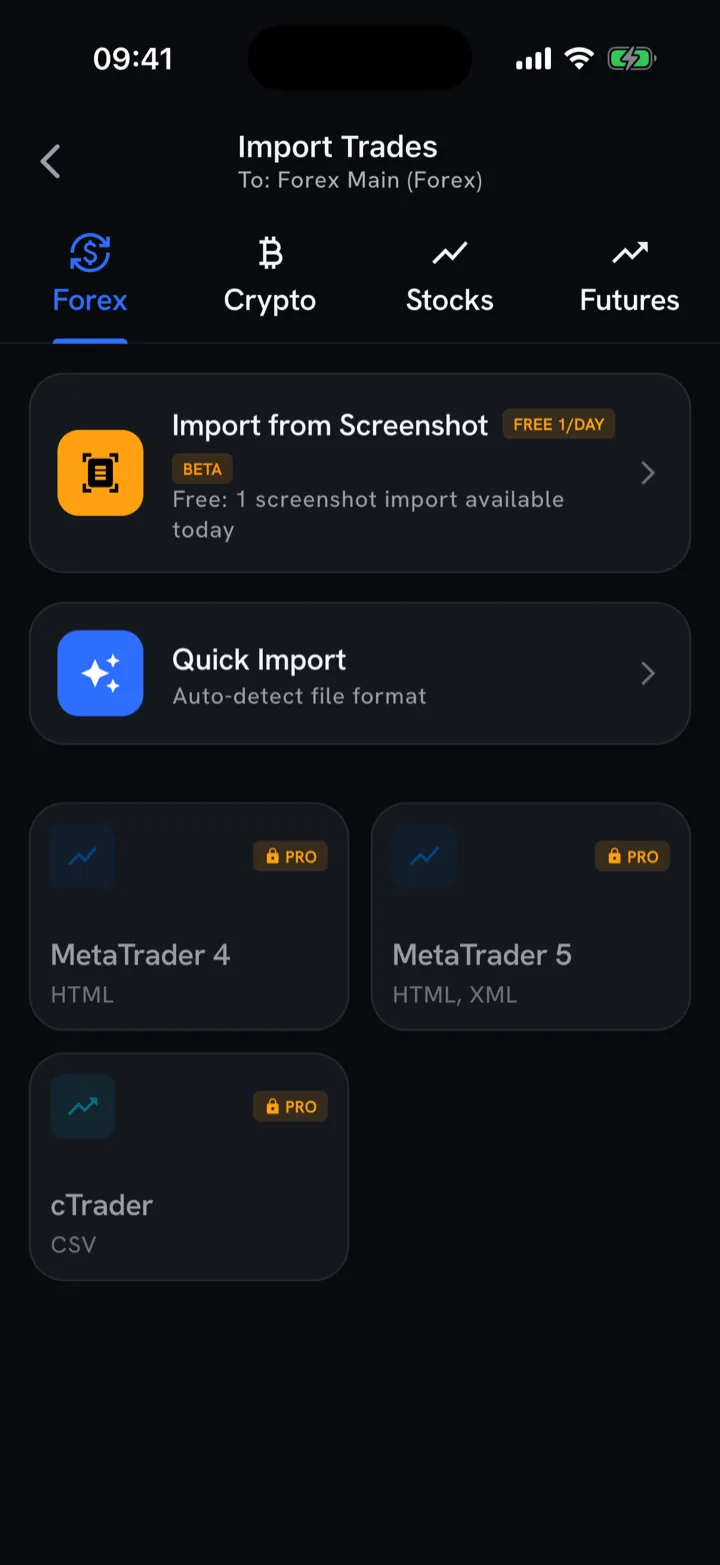
Bring in a backlog from MT4, MT5 or cTrader, drop in a CSV, or use the daily free screenshot import for one-offs. The same screen offers broker auto-sync and a built-in economic calendar, and on Pro your journal syncs across iPhone and iPad via iCloud. Manual logging works until a busy week buries you, so use imports to backfill the days you missed.
You now know how to use Trade Buddy
That’s the whole loop: explore the demo → set up a portfolio → log fast → review each day → read the analytics → act on the coach → enforce your rules. Run that loop every evening and the calendar fills in while the patterns in your trading start to surface.
The patterns only appear once your trades are in it, so the best next step is to log one. Download Trade Buddy free on the App Store, or see the interactive PnL calendar and pricing first.
A note that applies to any journal: it’s a tool for reviewing your own decisions, not financial advice. The edge comes from what you do with the patterns it shows you.
Frequently asked questions
Is Trade Buddy free?
Yes, Trade Buddy is free to download on the App Store and you can start logging trades straight away. You also get a fully populated demo account to explore first and a daily free screenshot import. A Pro tier adds extras like iCloud sync across iPhone and iPad for traders who want more out of the journal.
Do I need an account to use Trade Buddy?
No. Trade Buddy does not ask for an email or password when you set up your portfolio. You open the app, pick what you trade, name the portfolio and start logging in one short screen. There is no login wall, and your trades stay on your device by default rather than on a remote server somewhere.
Does Trade Buddy work on iPad?
Yes. Trade Buddy runs on both iPhone and iPad, and on the Pro tier your journal syncs across both through iCloud, so the same trades, calendar and analytics show up on each device. You can log on your iPhone during the session and review the bigger picture later on the larger iPad screen.
Can I import my existing trades into Trade Buddy?
Yes. Open Settings then Import Trades to bring in a backlog from MT4, MT5 or cTrader, drop in a CSV file, or use the daily free screenshot import for one-off trades. You can also snap a broker trade-history screen from MT4, MT5, cTrader or TradingView while logging and let the app read the fills.
Is my data private and stored on-device?
Yes. Trade Buddy is privacy first and stores your trades on the device by default, with no account or email required to start. Nothing is uploaded to a remote server unless you choose Pro iCloud sync, which keeps your journal in your own iCloud across iPhone and iPad rather than on a third-party database.