 Trade Buddy
How to Import MT4 and MT5 Trades Into a Trading Journal (Fast)
Learn how to import MT4 and MT5 trades into a trading journal fast: screenshot OCR, CSV and HTML exports, and tips to keep fees, swaps and fills clean.

Most traders quit journaling because of the typing. Retype every entry by hand after a 40-trade week and you will skip it the next week. The fastest way to import MT4 and MT5 trades into a trading journal is the method you will repeat, which usually means letting software read your platform instead of copying numbers into a spreadsheet cell by cell.
Every import path for MetaTrader, cTrader and TradingView trades speed against control, and getting your history in cleanly means handling the parts that quietly break your stats: swaps, commissions and partial fills.
The four ways to get MT4/MT5 trades out
There are really only four routes, and they trade off speed against control:
- Screenshot / OCR import. Snap the trade-history screen and the software reads the rows.
- CSV / HTML statement export. MetaTrader writes a full report file and you upload it.
- Broker history. Pull the same data from your broker’s web portal.
- Manual entry. Type each trade yourself.
Most traders end up using two of these: a fast default for the daily flow, and a heavier export when they need a perfect audit of a closed month.
| Method | Speed | Detail captured | Best for |
|---|---|---|---|
| Screenshot / OCR | Fastest (seconds) | Symbol, side, size, prices, P&L | Daily logging on your phone |
| CSV / HTML export | Fast | Everything incl. swap, commission, ticket IDs | End-of-month reconciliation |
| Broker history | Medium | Depends on broker portal | Cross-checking against the platform |
| Manual | Slowest | Whatever you choose to add | A handful of trades, or rich notes |
No single method wins outright. Screenshot import gets you logged in seconds; a CSV export captures every decimal of commission. Pick the right one for the job in front of you.
Screenshot import: the fastest path
This is the method that survives a busy week, because it works from your phone in the same minute you close a trade. The flow is identical across the platforms traders use most.
MT4 and MT5
- Open MetaTrader and go to the History / Account History tab (on mobile, the History tab at the bottom).
- Set the date range to the session or week you want.
- Take a screenshot of the rows. Symbol, type, volume, open/close price and profit should all be visible.
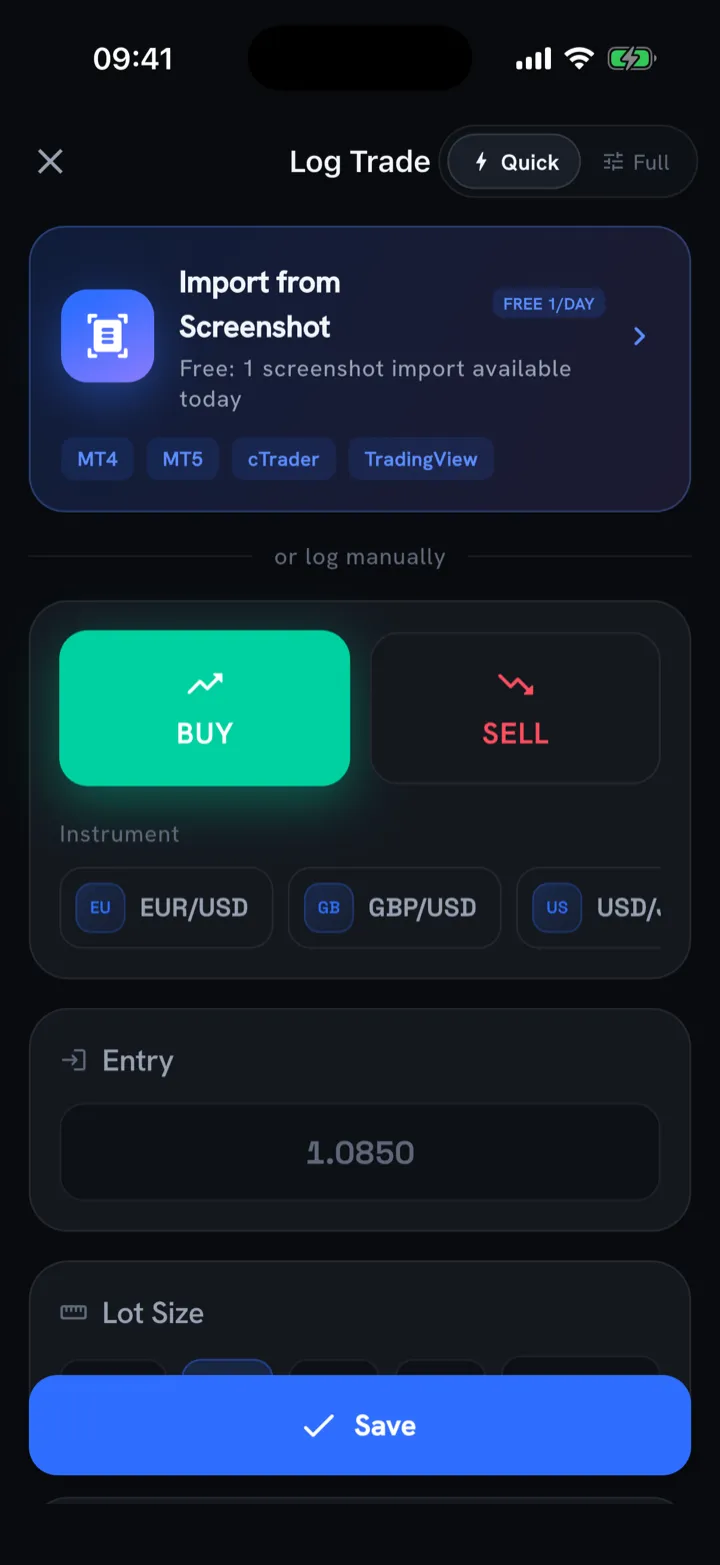
- In your journal app, choose import-from-screenshot and pick the image. The OCR reads each fill and pre-fills the trades.
- Glance over the parsed rows, confirm, and save.
cTrader
cTrader’s History tab on desktop and mobile lays out the same fields. Screenshot the closed-positions view, not the open-positions list, and keep the Commission and Swap columns in frame if your account shows them. Import the same way.
TradingView
For TradingView, the equivalent is the Trading panel → History / Orders tab from your connected broker, or the Paper Trading account log. Capture the filled orders and import the screenshot.
A few things that make OCR cleaner:
- Crop tightly to the table; stray UI text gives the reader less to misread.
- Use the platform’s light or high-contrast theme if numbers come out fuzzy.
- Capture one symbol’s worth of rows per shot when columns are dense. Two quick screenshots beat one ambiguous one.
If a value lands wrong, you fix one field instead of typing the whole trade. Checking a few numbers is faster than entering all of them, so screenshot import earns its place as the default.
CSV and HTML export: the clean-data path
When you want every commission and swap to the cent (say you’re closing out a month or reconciling against your broker), export the full statement.
Exporting from MT5
- Open the History tab, right-click anywhere in the panel.
- Choose Report → XLSX (or HTML). MT5 writes a complete account statement with deals, orders, commissions, swaps and ticket IDs.
Exporting from MT4
- Open the Account History tab, right-click, and select Save as Detailed Report (HTML) or Save as Report.
- MT4 produces an HTML file with the same per-deal detail.
Then upload that file (or a CSV you’ve converted) into your journal. Exports carry fields a screenshot can’t always show: ticket numbers for deduplication, exact commission, and the swap charged on positions held overnight. The tradeoff is friction. You’re at a desktop dealing with a file instead of snapping a photo at the chart.
A reasonable rhythm: screenshot import for the daily log, one CSV/HTML export at month-end to true everything up. If your numbers ever drift, the export is your source of truth.
Keep the data clean: fees, swaps and partial fills
Imported data is worth only as much as it is accurate. A journal that says you’re up while commissions have put you down is worse than no journal, because it gives you false confidence. Three things distort MT4/MT5 imports most:
- Commissions. Many ECN accounts charge per lot. If your import skips commission, every trade looks slightly better than reality. Confirm the imported P&L is net of commission, or add it.
- Swaps. Hold a position overnight and you’re charged or paid a swap. On a multi-day swing it can outweigh a small price move. Make sure overnight trades carry their swap.
- Partial fills. One “trade” in your head is often several deals in MetaTrader. A position scaled out in three exits is three rows. Group them back into one logical trade so your win rate and average win aren’t inflated by counting one idea as three.
A quick gut check: pick yesterday’s biggest trade and compare your journal’s net P&L against the platform to the cent. If they match, your import is trustworthy. If they don’t, swap or commission is usually the gap.
Get these right and your log becomes something you can act on. When your stats are clean, metrics like expectancy and average win start to mean something. See Win Rate vs. Risk-Reward: The Trading Metrics That Actually Matter for which of those numbers are worth watching.
When manual entry still earns its place
Don’t dismiss typing entirely. For a handful of trades, or when you want to capture why you took a setup (the chart screenshot, your emotional state, whether you followed your plan), manual entry does something automation can’t. Automation captures what happened. A short note captures why you took the trade and whether you’d take it again. The strongest routine pairs fast automated import for the data with a quick manual note on the trades that taught you something. That habit drives a trading journal that improves your results, and it’s also your first line of defense against revenge trading, because writing down the rule you broke makes it harder to break again.
How Trade Buddy handles the import
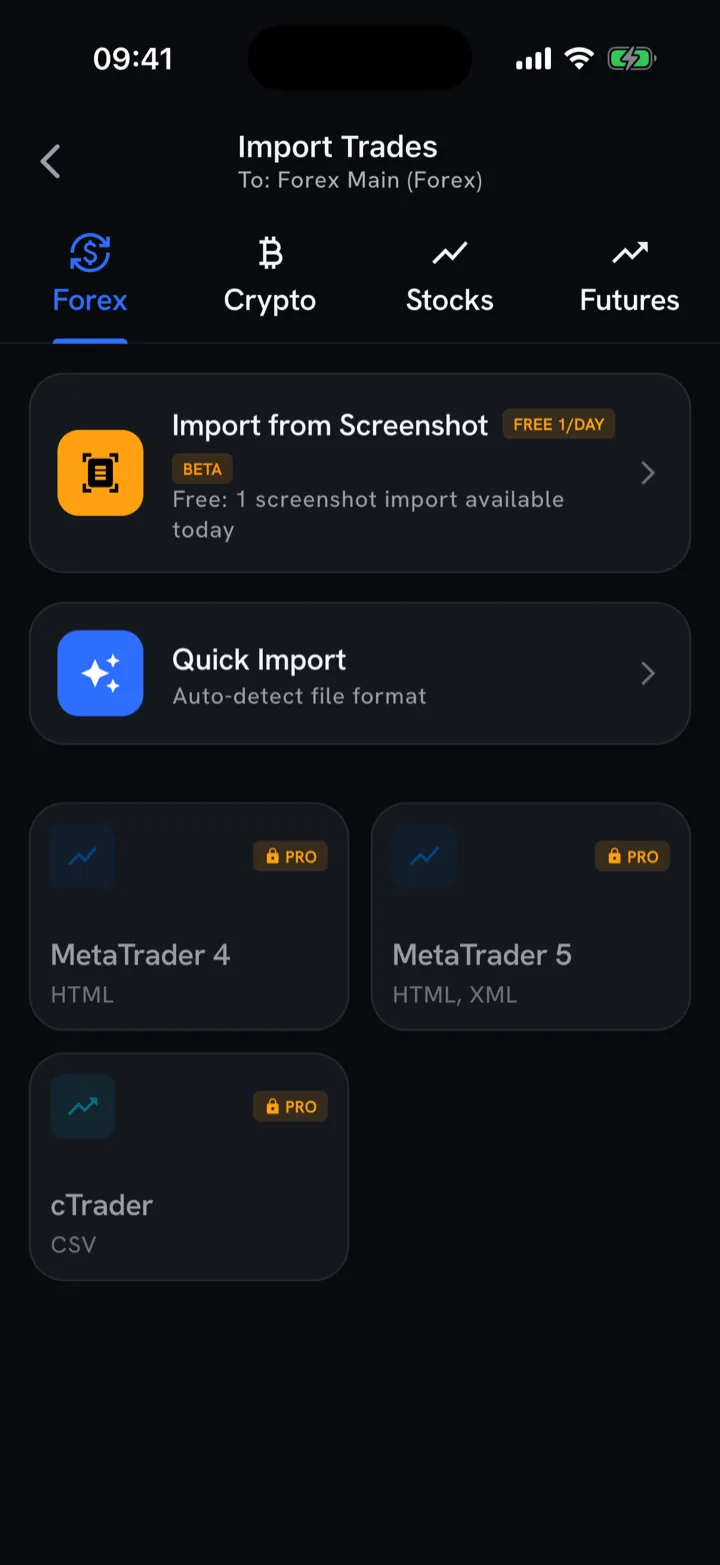
Trade Buddy is built around exactly this problem. Snap your MT4, MT5, cTrader or TradingView trade-history screen and it reads every fill and logs it for you. Prefer files? CSV import is there too. And if you only have a couple of trades, the quick log enters one in under five seconds with a live estimated P&L as you type.
Once your trades are in, they roll up into a color-coded PnL calendar: every day is green or red, and tapping a day shows the trades behind the number, along with your win rate, green days and trading days. The AI coach surfaces your edges and leaks, and pro analytics (Sharpe, Sortino, expectancy, max drawdown) each come with a plain-English line so every number is easy to read. It’s free forever, no account required, and your trade data stays on your device. If you’re weighing your options, this breakdown of trading journal apps for iPhone covers what to look for. (And to be clear: a journal is an analytics tool, not financial advice.)
The bottom line
The best way to import MT4 and MT5 trades is the one you’ll keep doing. Screenshot import for the daily flow, a CSV or HTML export when you need every commission and swap to the cent, and a short manual note on the trades worth learning from. Keep fees, swaps and partial fills honest, and your journal becomes something you trust enough to act on.
Stop retyping your trades. Import your MT4 and MT5 history into Trade Buddy and see your first green-and-red calendar today.
Frequently asked questions
How do I export trade history from MT4/MT5?
In MT5, open the History tab, right-click in the panel, and choose Report, then XLSX or HTML. MT5 writes a full statement with deals, commissions, swaps and ticket IDs. In MT4, open Account History, right-click, and select Save as Detailed Report for an HTML file with the same per-deal detail.
Can I import MetaTrader trades by screenshot?
Yes. Open the History tab in MT4 or MT5, set your date range, and screenshot the rows so symbol, type, volume, open and close price, and profit are visible. In Trade Buddy, choose import from screenshot and pick the image. The OCR reads each fill and pre-fills the trades for you to confirm.
Does importing keep swaps and commissions?
It can, but check it. A CSV or HTML export carries exact commission and the swap charged on overnight positions, so those imports stay precise. Screenshots may miss them if the columns are off screen, so keep the Commission and Swap columns in frame, and confirm your imported profit is net of both before you trust the numbers.
Does Trade Buddy support cTrader and TradingView?
Yes. Screenshot import works the same across MT4, MT5, cTrader and TradingView. For cTrader, capture the closed-positions view from the History tab. For TradingView, capture the filled orders in the Trading panel History or Orders tab from your connected broker, or the Paper Trading log, then import the image and confirm the parsed rows.
Is there a CSV import?
Yes. If you prefer files over screenshots, Trade Buddy accepts CSV import. Export a full statement from MT4 or MT5, convert it to CSV if needed, and upload it. File imports carry fields a photo can miss, including ticket numbers for deduplication, exact commission, and overnight swap, which makes them ideal for end-of-month reconciliation.